

Pinterest can be a huge source of traffic for us bloggers. I personally have seen so much traffic growth since I started to use Pinterest regularly and I know it can do the same for you too. However, like everything blogging related you have to invest time and let’s be honest time is something we all seem to struggle with, especially those of us with children.
I want to share with you one of the two Pinterest schedulers I use to automate my pinning, meaning I can spend less time manually pinning things and more time in the parts of my blog that actually need me. The scheduler is called *BoardBooster and I’m sure you have probably at least heard of it and maybe you even use it yourself, but perhaps are unsure as to exactly how to use its functions for maximum benefit.
BoardBooster is a powerful Pinterest scheduling tool that basically acts as your own Virtual Assitant!
There are three main ways that you can use BoardBooster, each having their own benefits so let’s crack on!
SCHEDULER
You can set BoardBooster up to pins to various boards during set (pre-determined) time slots and days. This feature is great for repinning other people’s pins, but I also use it for my own content.
Remember to share 80% of other people’s pins and 20% your own for the best results with Pinterest
When you add one of your Pinterest boards, BoardBooster automatically sets up a secret board on your account with the same name (it shows as the same name with a – in front of it). Then whenever you have time you can pin loads of pins to that secret board and then the scheduler will publish the pins throughout the month to the public board of the same name according to your pre-arranged time slots. This saves you flooding your feed with pins all in one go; just load up BoardBooster and it will trickle them out for you.
I added my most popular board to the Scheduler and that keeps my pins ticking over.
How to set up BoardBooster scheduler:
- Click the “Add Boards” button within the Scheduler tab.

- Select every board you want to include or just start with one ( 🙂 ) Click to continue.
- Choose the frequency for how often you want BoardBooster to pin for you. (You can change it later.), then submit.

- Then BoardBooster will create a “secret board” matching the board(s) you selected. It will appear in your board’s list at the bottom with the same name and a – in front of it.
- Start pinning to your secret board. Just select this secret board and fill it up. Then BoardBooster will then share it according to the times you chose.
You can change the frequency at any time by going into the setting and adjusting it to suit. You can then add more boards in exactly the same way.
Can you see why Scheduler is so awesome?
LOOPING
Another great feature of BoardBooster is Looping. This allows you to select one of your Pinterest boards and get BoardBooster to re-pin the pins that are already on that board – (usually taking the oldest pin and pinning it to the top). Then after 5 days (or whatever time you select), BoardBooster will delete the version of that pin with the least amount of re-pins. This means that you won’t have endless duplicated pins and it keeps your boards looking cluttered with multiple versions of the same pin.
The benefits of Looping?
1. You have a presence on Pinterest throughout the day, without you having to actually be there.
2. Your pins another opportunity to go viral, without cluttering up your boards (de-duplication process).

Decide on your settings
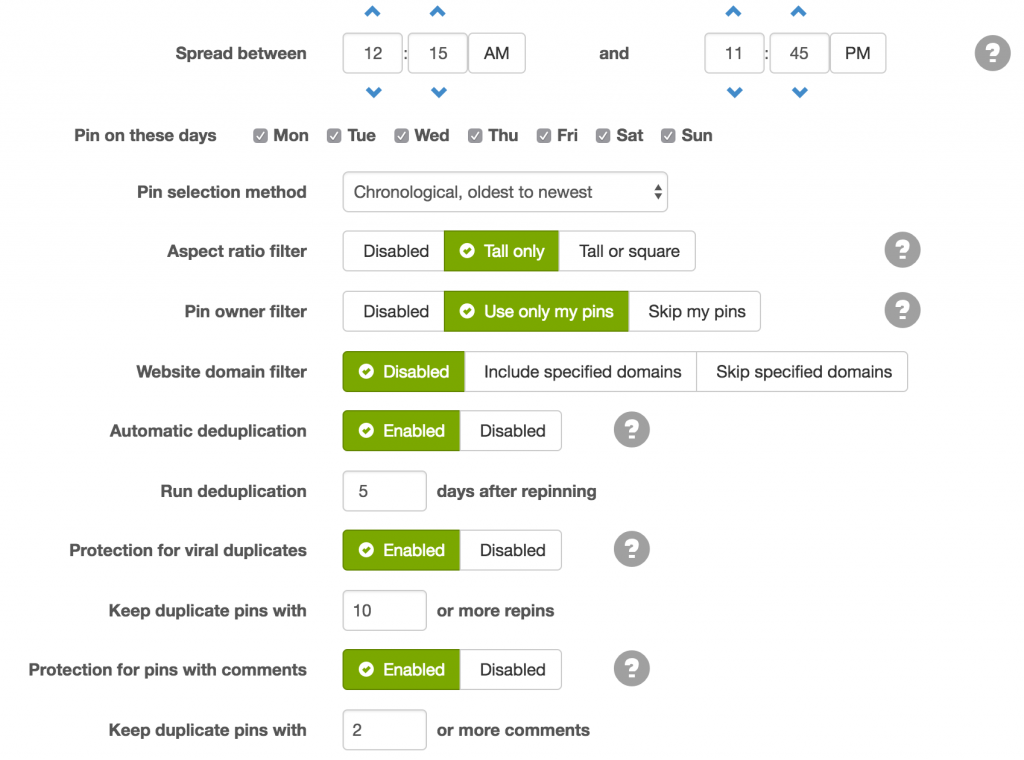
You can see in the above picture, the first thing you need to do is to decide the timescales for your pins (i.e between X time and Y time). Then after a while, BoardBooster will analyse your particular Pinterest account and then you can check out their “Best time to pin” report, and adjust your looping to happen within your most popular time periods.
How many pins to loop per day? Approximately 1-2% of each board. So, if a board has 100 pins in total, set it to loop 1 or 2 pins per day.
Pin selection method – this is quite straight-forward. I choose – oldest to newest, so my oldest pins get repinned first.
Automatic deduplication. You decide if you want to delete the older pin. As you can see mine is enabled so it will delete the duplicate pins.
Run deduplication – this is the number of days BoardBoosters will wait before deleting the older pin. I choose 5 days as you don’t want duplicates staying on your board for too long.
Protection for viral duplicates – If you enable this BoardBooster won’t delete the pin with a number of pins you choose. It will still repin the pin as part of the looping, but it just won’t delete the older pin if the automatic deduplication is enabled.
Protection of pins with comments – Similar to the option above but this time you can protect pins with over a chosen number of comments.
CAMPAIGNS
Campaigns are the best way to share your pins on group boards, with almost no effort. If you pinned a new post to all your group boards at once it would clutter up your feed, this is where campaigns come in. You don’t want to pin every new blog post to all of your group boards at once because that would “clutter up” your feed (not pretty!) This is where campaigns come in.
There are two types of Campaigns you can set up with BoardBooster:
1. A Scheduled Campaign
This campaign creates a secret board, and any pins you add to that secret board will be re-pinned to other boards at chosen intervals. They are a great way to add your newest content to all of your group boards without “spamming” the feed.
2. A Random Campaign
This pulls a certain number of pins from one particular board, at random times throughout the day, and re-pins them to other boards you’ve chosen for that campaign. Random campaigns allow all of your posts to be continuously shared to group boards, increasing their exposure, without any extra work for you.
3. Pin Sourcing Campaign
This is the magic. Here you can set up a campaign where you can choose a certain board (I’ve chosen a super popular group board I’ve joined) and you select how many pins you want BoardBooster to pull from that board each day. You also select a board of yours that you would like BoardBooster to pin these sourced pins too! BOOM! As a member of a group board you need to reciprocate and when you add your own pins you need to make sure you are going into that group and repinning other people’s pins. You can see how Pin Sourcing campaigns means that you feel always ‘in credit’ with your groups. You can set up a Pin sourcing campaign for each group board if you choose.
How to set up Campaigns
1. Click “Pinning Tools” in the top right corner and then choose “Campaigns” from the drop down box.
2. Pick “New Campaign” and here you can select either a Random, Scheduled or Pin Sourcing Campaign.

Scheduled Campaigns
1. Name the campaign (the secret board will be created in this name).
2. Click “Add Re-pin” and select each board, one at a time, that you want these pins to be re-pinned onto.
3. Select the day and time you would like each re-pin to happen and save.
Then all you have to do is pin to the secret board for that campaign and BoardBooster will do the rest.
Random Campaigns
1. Name your campaign.
2. Choose the board you’d like pins to be picked from (Source Board).
3. Then choose your “Target Boards”. This might be all the group boards you belong to for example.
4. Decide how many pins you want re-pinned from the Source Board to the Target Boards each day. You can set a different number of re-pins for each target board, if you like.
5. Set the timescale that the pinning should occur within and save.
Campaign examples
- You might have a main/broad category board (Target Board) and then have a few boards which fall under this main topic (Source Boards). If you do you can set up a campaign to share posts between all these boards.
- Re-pin 2-3 pins per day from your blog posts board to all group boards you belong to for that particular your niche.
THE PIN DOCTOR
This feature can be really helpful to assist people who want to get ‘Power Pinner’ status. Power Pinners have great SEO, use of keywords, engagement on their pins and have good quality pins. It is not easy to get this status but BoardBooster’s “Pin Doctor” can help you get on track.
The Pin Doctor will test your pins for nine different issues and give you a report.
First, click “Maintenance Tools” in the top right, and select “Pin Doctor” from the drop down menu.
 Then pick the board/s you want to test. Then add in the number of pins you want it to analyse. The bottom figure is what you will be charged for the service.

Then as you can see you can select each of the options in turn and see how your pins faired. If you have issues then you can correct or delete the questionable pins. So The Pin Doctor allows you to clean up your pins in no time at all. This will help you rank higher in Pinterest’s algorithms, leading to more engagement, giving you more chance of being chosen as a Power Pinner.
Pin Doctor tips
- For duplicate pins (those which either/or have the same link or the same image, or both) I would delete whichever pin has the least number re-pins/likes.
- You can delete multiple pins at once. Tick the box to the left of each pin and then select “Delete” at the very top of the page. This will delete the pins from your account over the next few hours.
Do you love it? BoardBooster is a great way to automate pinning so you can have a presence when your not actually pinning yourself and keep your boards in order too. You get 100 free pins each month and the paid plans start at just $5 per month. I have used this level for years and only recently upgraded to the $10 per month plan which gives me 1000 pins each month. You can test it out with a free trial too.
Are you going to give it a go?
*The links to BoardBooster are my affiliate links

Comments 2
Wow I had no idea boardbooster could do so much. Its the pinning machine for advanced bloggers! Thanks Aby #theLinkLinky
Since I have been using PinPinterest .com for automating my Pinterest account for around 8 months now, I thought of sharing my experience…
It has been a great journey with PinPinterest as it has handled everything so well. I need not worry about the contents in my account, the pins on my boards as its intelligent artificial intelligence based tool does the trick. It learns and evolves following the way I do the work and replicates. This tool is also well optimised for the mobile phones and I have been using it on the go while working and even in my free time by accessing it through phone. Moreover, it is free and available on cloud so it did not even require me to install it on my PC even.
Last but not the least, there are some advertisements that come with this tool but it is worth the work that tool does as also get to control the speed of the pins on the boards and stop my account from being brought under the radar for too much of an activity. Now that is simply great and due to this I have managed to get good number of followers which were almost negligible when I first started.